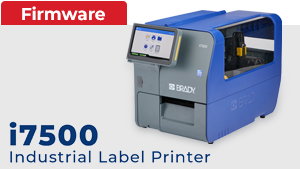
Included in this update:
- Improvements for Perforation Cutter accessory
- Previous February 2026 functionality updates which included support for Peel Configuration Printer and Perforation Cutter accessory, improvements on cutting operations other updates
Instructions to Upgrade Firmware using USB:
1. Download and extract the i7500Upgrade.zip and select the i7500FullUpgrade.2.2.1422649.tar file and copy the .TAR file into the root of your USB flash drive
2. Power on the printer and insert the USB drive in the printer.
3. The printer will display a prompt for Upgrade.
4. Click on the Upgrade button.
5. The printer will start upgrading and display the progress with a progress bar.
6. Wait until the printer displays the "Upgrade successful" message.
7. Click on the Reboot Now button, or let the printer reboot by itself.
Instructions to Upgrade Firmware using ESM(Embedded Settings Manager):
1. Find your IP address and Connect Power on the i7500 and ensure it's on your network. To find the IP address, navigate on the printer UI to:
Settings → Connection → Advanced Network Settings → (Wi-Fi/Ethernet).
2. Connect PC to the same network as printer.
3. Enter the printer's IP address into web browser’s address bar to access the ESM (Embedded Settings Management) page.
3. Navigate to the Firmware Tab.
4. To pull firmware from our server: Click "Update Now" on the left side of the page.
5. To use a local file: Click "Browse" or "Browse and Update" at the bottom left, then select your downloaded firmware upgrade .tar file.
Instructions to Upgrade Firmware using BWS(Brady Work Station):
1. In BWS (Printers app), connect the printer using USB or IP.
2. If a firmware update is needed, a yellow up arrow appears.
3. Click the up arrow, then in the Printer Firmware tab, select Update Now.